
Connect Claude to your Smind B2B admin and you can manage rules and review submissions in natural language. Instead of clicking through the admin, you tell Claude what you want: which rules are active, create a draft wholesale rule for the Gold group, show me pending registrations, approve this customer. Claude does it for you through the app’s MCP integration. The same connection works with ChatGPT and Cursor, this guide shows Claude.
Access is per person. Each person who connects gets their own MCP user with an access code, and the user’s role decides what Claude is allowed to do for them. You can revoke that access at any time.
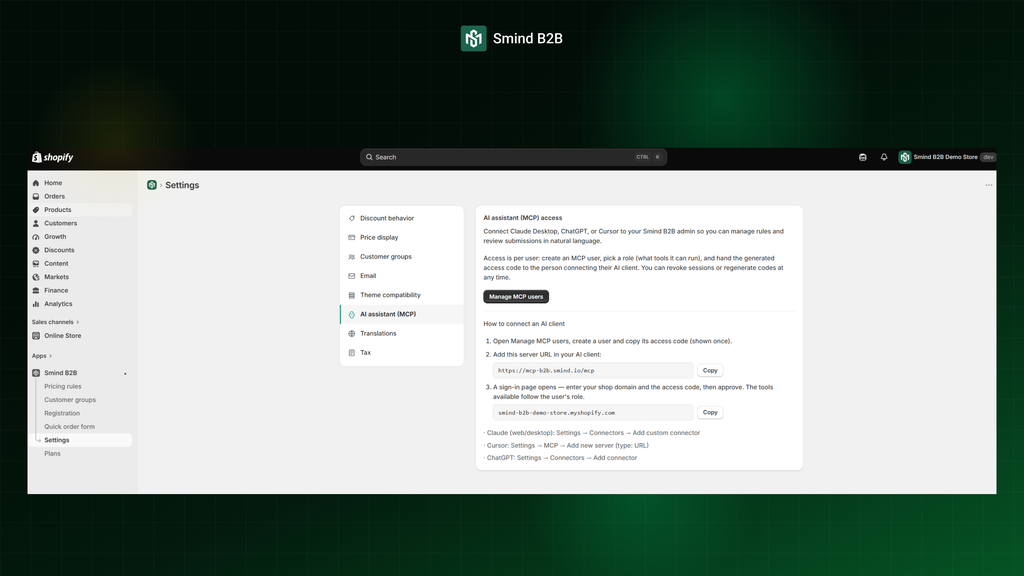
Connect Claude to Smind B2B MCP
Navigate to Smind B2B > Settings > AI assistant (MCP)
Step 1: Create an MCP user
- In Smind B2B admin, open Settings, then AI assistant (MCP), then click Manage MCP users.
- Click Add user.
- Fill in Name (who this access is for, e.g. Jane – Claude Desktop), pick a Role, and optionally add a Note about what the access is for.
- Click Create user. A window titled Access code for new user appears with a 10 character code.
- Click Copy code and store it somewhere safe. The app shows it only once, it cannot show it again later.
Note: Only the store owner, and staff the owner has granted access to, can open this page. Anyone else sees Access restricted.
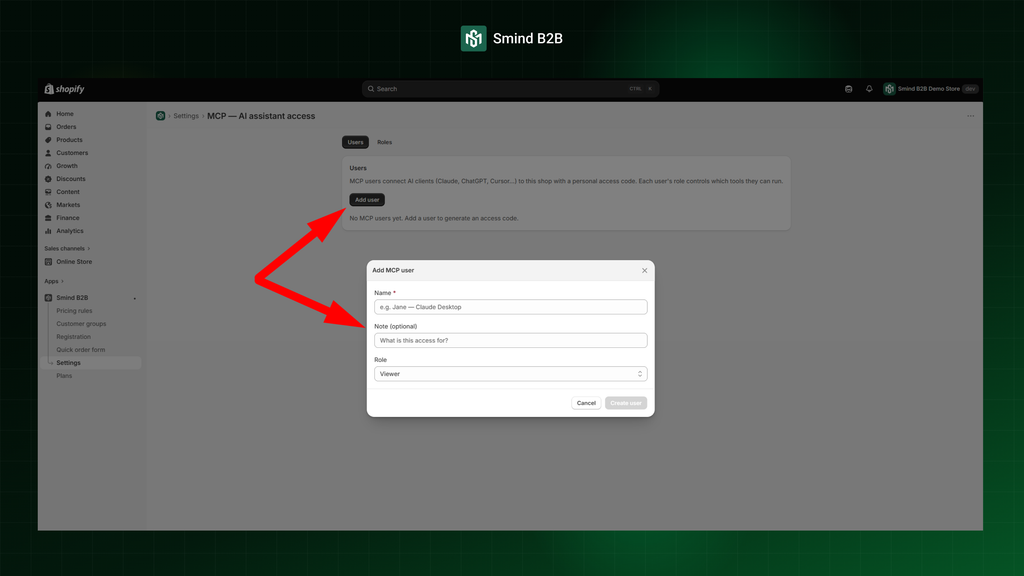
About the role, new users default to Viewer, which is read only. Editor can also create and edit rules, forms and groups, set rules Active or Draft, and approve or decline registrations. Admin can do everything including deleting and changing settings. Start with Viewer and raise it when you know what you want Claude to do.
Step 2: Get your server URL and shop domain
Go back to Smind B2B > Settings > AI assistant (MCP), under How to connect an AI client you will find two values with a Copy button next to each:
- The server URL, which looks like https://mcp-b2b.smind.io/mcp
- Your shop domain, which looks like smind-b2b-demo-store.myshopify.com
You need both in the next step.
Step 3: Add the connector in Claude
- In Claude (web or desktop), open Settings, then Connectors.
- Click Add custom connector.
- Paste the server URL and click Add.
- Claude opens a sign in page titled Connect your Shopify store.
- Enter your shop domain and the access code from step one, then click Continue.
- Claude asks you to allow the connection. Allow it.
If the page says “Invalid shop domain or access code”, check that the domain is the `.myshopify.com` one, not your custom domain, and that the code was copied in full. If you lost the code, the store owner can regenerate it (see below).
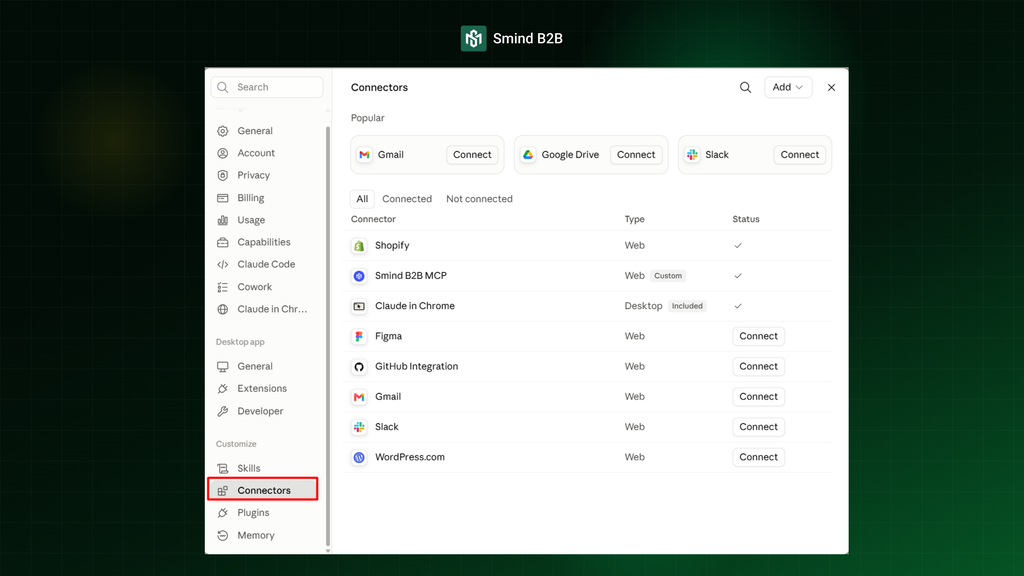
Note: On the Claude Free plan you can add one custom connector. Paid plans have no limit.
Check the access
Start a new chat in Claude. If the connector is not switched on for that chat, click the + button at the lower left of the chat box, then Connectors, and turn on Smind B2B.
Then ask: what can you do in my store?
Claude will list the tools it can run, grouped by module, along with your user name and role. If the list is empty or Claude says it has no tools, the connector is not enabled for this chat. Some useful first questions:
- Which wholesale rules are active?
- Show me pending registrations.
- Create a draft wholesale rule, 15% off all products, for the Gold group.
Anything Claude creates is saved as a Draft. It cannot make a rule live on its own, you review it in the admin and activate it yourself. This applies to every role, including Admin.
Manage or revoke access
Back on the Manage MCP users page you can see, for each user, their role, whether they are enabled, when they last connected, and how many sessions are open.
- To cut off one device, expand Sessions on that user and revoke the session.
- To cut off all devices and stop the old code working, click Regenerate access code. A new code appears, again shown once.
- To stop the user entirely, click Disable access. Their code no longer connects.
Revoking takes effect within about 30 seconds.
If you change a user’s role, ask them to reconnect the connector in Claude. Claude caches the list of tools when it connects, so it keeps showing the old set until it reconnects.
Frequently Asked Questions
Do I have to sign in every time?
No. Once connected, Claude stays connected for as long as it is used at least once every 30 days. After 30 days without use, the sign in page appears again and you enter the shop domain and access code as before.
Can two people share one access code?
The code technically works on several devices, but do not share it. Give each person their own user so the Activity log records who did what. Every change made through Claude is logged under that user’s name.
Can Claude delete my pricing rules?
No. Even an Admin can only archive a rule, which removes it from your lists and stops it applying but keeps it recoverable. Deleting customer groups, forms and submissions is possible, and only with the Admin role.
Why does Claude say it cannot do something?
Either the user’s role does not include that tool, or a limit was reached. The app allows 15 changes per minute and 200 per day per store, and any bulk create of more than 10 items is held for you to approve in the admin instead of running straight away. Ask Claude “what can you do in my store?” to see exactly which tools the current role allows.